Delta Executor Setup Guide for Android and iOS
Delta is the executor mobile authors list most often. The install takes a few minutes, but the first time has a few traps: fake download sites, the "unknown apps" prompt and version mismatches. This guide walks you through all of them.
What you need
- An Android phone or tablet with free storage for the APK.
- An alternate Roblox account, with 2-Step Verification turned on.
- The official download link. Our Delta page has it, and it matches the official Delta site.
- Five minutes and a stable connection.
How Delta works on Android
Delta for Android is a modified version of the Roblox app. You open Delta, log in with your alternate account and join a game as usual. Once you are in, a floating Delta button opens the executor, where you paste and run scripts.
That is why Delta gets new versions so often, like 2.735 or 2.738 in the channel videos. When Roblox updates its app, an older Delta build can stop working until a newer one comes out.
Android install, step by step
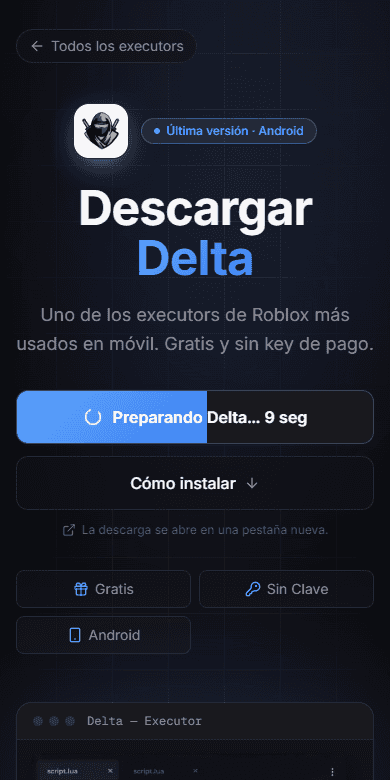
- Open the Delta page on RblxScript in your phone browser and tap the download button. The download opens in a new tab.
- When Android warns about installing unknown apps, allow it for that browser only.
- Open the APK from your notifications or the Downloads folder. Let Google Play Protect finish its scan.
- Tap Install. When it finishes, open Delta and log in with your alternate account.
- Join a game, tap the Delta button, paste a script and press Execute.
The MatLumber channel has a recent walkthrough of Delta 2.738 on Android, from the download to the first script.
Running your first script
Pick a script on RblxScript that lists Delta as compatible and tap "Copy code". Go back to Delta, open the editor, paste and press Execute. Most scripts show a panel within a few seconds.
Wait until the game has fully loaded before you execute. Running a script during the loading screen is one of the most common reasons nothing happens.
Does Delta need a key?
The current Delta builds work without a paid key. Some versions add a free verification step with a short link. If yours asks for one, follow the steps in the app. You never have to pay for Delta, and no real key page asks for your Roblox password.
What about iPhone?
iPhone is harder. There have been iOS builds of Delta and Codex, but they depend on sideloading tools and on trusting a developer profile in Settings, General, VPN & Device Management. Apple can revoke those certificates, so the app may stop opening without warning. If you only have an iPhone, expect to reinstall now and then.
Common failures and fixes
| Problem | Likely cause | Fix |
|---|---|---|
| Delta asks you to update | Roblox released a new version | Install the matching Delta build |
| App closes on launch | Corrupted cache or old build | Clear the app cache, or reinstall |
| Script runs, no panel appears | Panel off-screen or patched script | Rotate the phone, then check the comments |
| "App not installed" error | Old Delta version conflicts | Uninstall the old one first |
| iOS app will not open | Certificate revoked | Wait for a new signed build |
Staying safe with Delta
The biggest risk is not Delta itself. It is the fake Delta sites. Search results and video comments are full of copies that ship malware. Always start from our Delta page or the official site, and never install a "Delta mod" from a stranger.
Two more habits help. Keep the regular Roblox app for your main account and use Delta only with the alternate one. And delete old Delta APKs from your Downloads folder, so you never reinstall an outdated or unknown file by mistake.
Common questions
Is Delta free?
Yes. Delta is free to download and use, and so are the scripts on RblxScript. If a site asks you to pay for Delta, you are on the wrong site.
Why does my phone say the APK is harmful?
Play Protect warns about apps that modify other apps, and Delta modifies Roblox. The warning is expected for the real file. It is also exactly what you would see with a fake one, which is why the download source matters so much.
Can I keep the normal Roblox app installed?
In most cases, yes. If the install fails with a conflict, watch the latest Delta tutorial on the channel for the current version before you remove anything.
Google Play Protect (Google Help)
How Android scans apps installed from outside Google Play.
Add 2-Step Verification (Roblox Support)
Protect the account you use with Delta before your first session.
Download Delta
The Delta page on RblxScript, with the current build and install steps.
Mobile-friendly scripts
Scripts their authors marked as compatible with mobile executors like Delta and Codex.
Mobile vs PC executors
Not sure a phone is the right choice? Compare it with Windows first.